What Is B-Roll? How to Use Cutaways in a Talking-Head Video
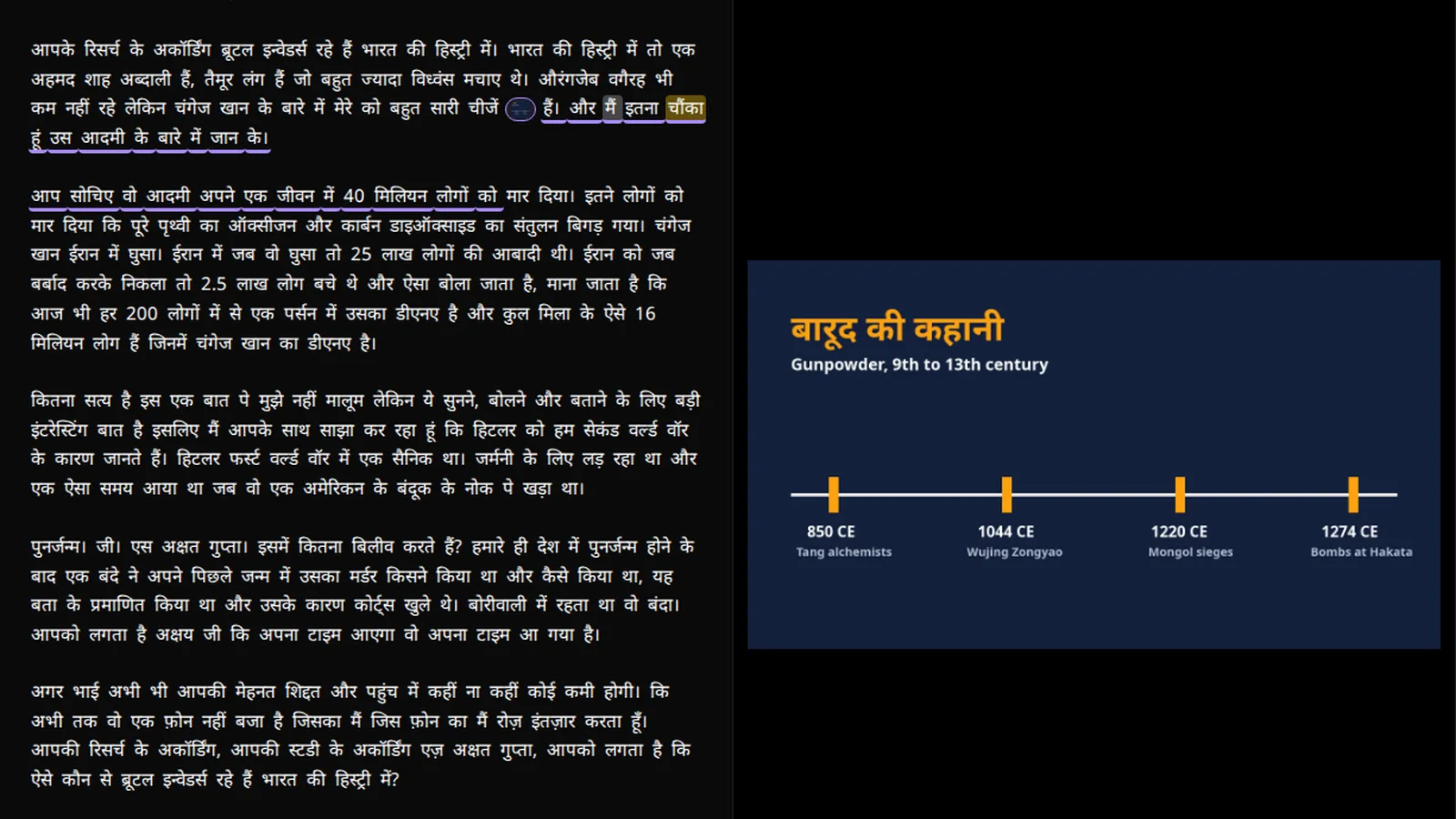
B-roll is every shot in a video that is not the main one. In a talking-head video the main shot — the A-roll — is the person talking; B-roll is the screenshot of the thing they are describing, the slide with the figures, the photo of the place, the ten seconds of hands doing the task. It exists for two reasons: to show what words alone cannot, and to give the viewer's eyes somewhere to go while the ears keep working.
The term is from film, where the A and B rolls were literally two reels of footage cut together. What survived is the idea, and it is the single cheapest upgrade a one-camera video can get — if it is used for the right reasons, at the right length, in the right places. This guide is about those three things.
The short version
- B-roll shows; A-roll tells. Use it where a picture carries information the words are struggling with.
- You can get it without a crew: screenshots, slides, your own photos and clips, and stock.
- Three to eight seconds for a cutaway; as long as the words for a slide or a screen.
- Land it on the words that describe it, not a beat before or after.
- Less than you think. The mistake is not too little B-roll; it is a video that never lets you see the person.
What is B-roll for?
Three jobs, in order of importance.
To show what is being described. "Go to Settings, then Privacy" is a sentence; a screenshot of the Settings page with Privacy visible is the instruction. "Revenue doubled" is a claim; the chart is the evidence. Any time a viewer would have to imagine something, the picture of it is B-roll, and this is the use that makes a video genuinely better rather than merely busier.
To cover a cut. Editing a monologue means removing things — a false start, a filler, a tangent — and every removal is a jump cut in the A-roll where your head moves slightly between one frame and the next. A cutaway placed over the join hides it completely: the viewer sees the picture, hears continuous speech, and never sees the seam.
To rest the eye. A face talking to camera for six minutes is a lot of face. A few seconds of something else, every so often, is a reset — the same reason a page of text has headings. This is the weakest reason, and the one that leads to overuse.
Where does B-roll come from without a film crew?
Four sources, and the first three are free.
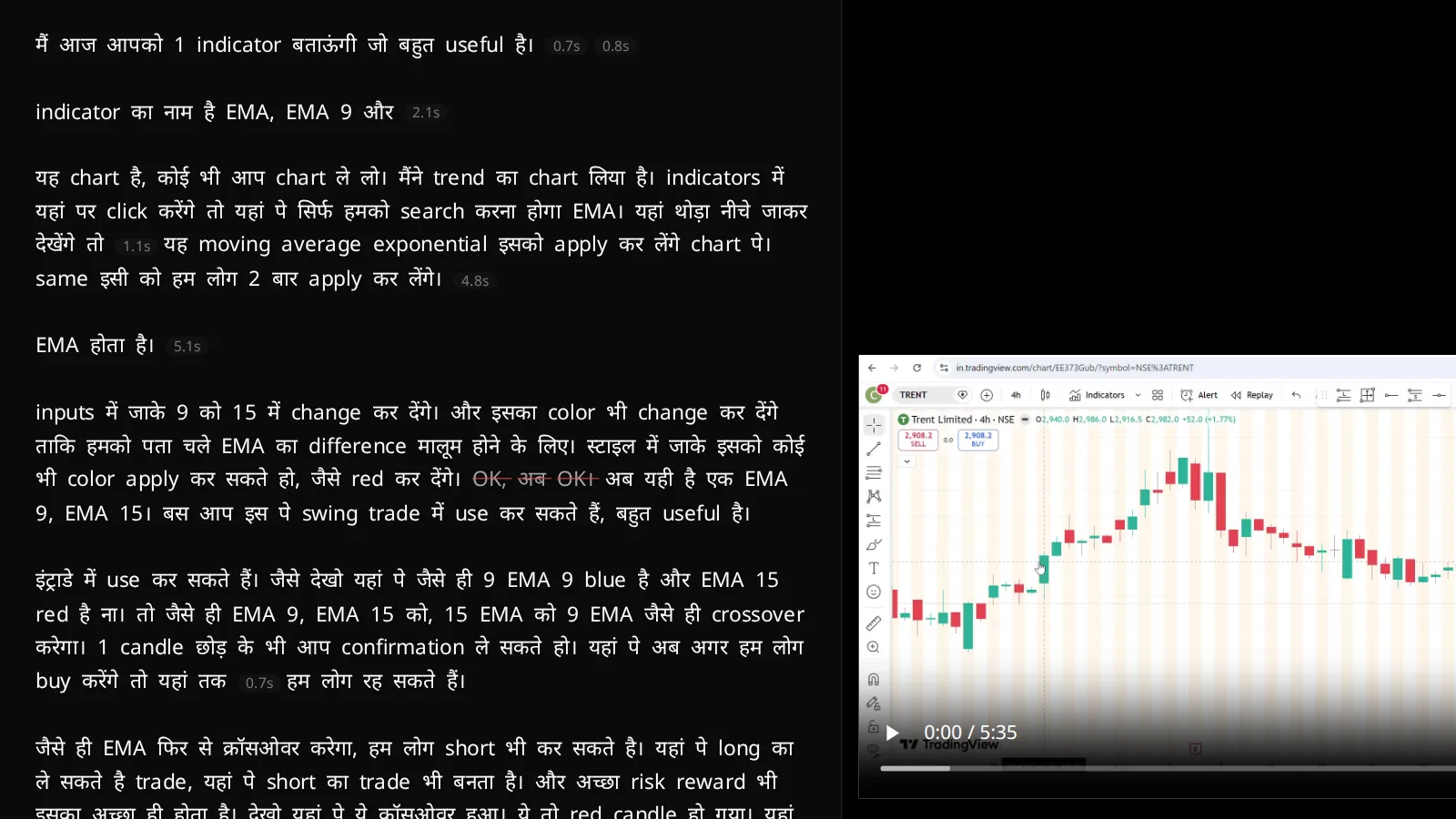
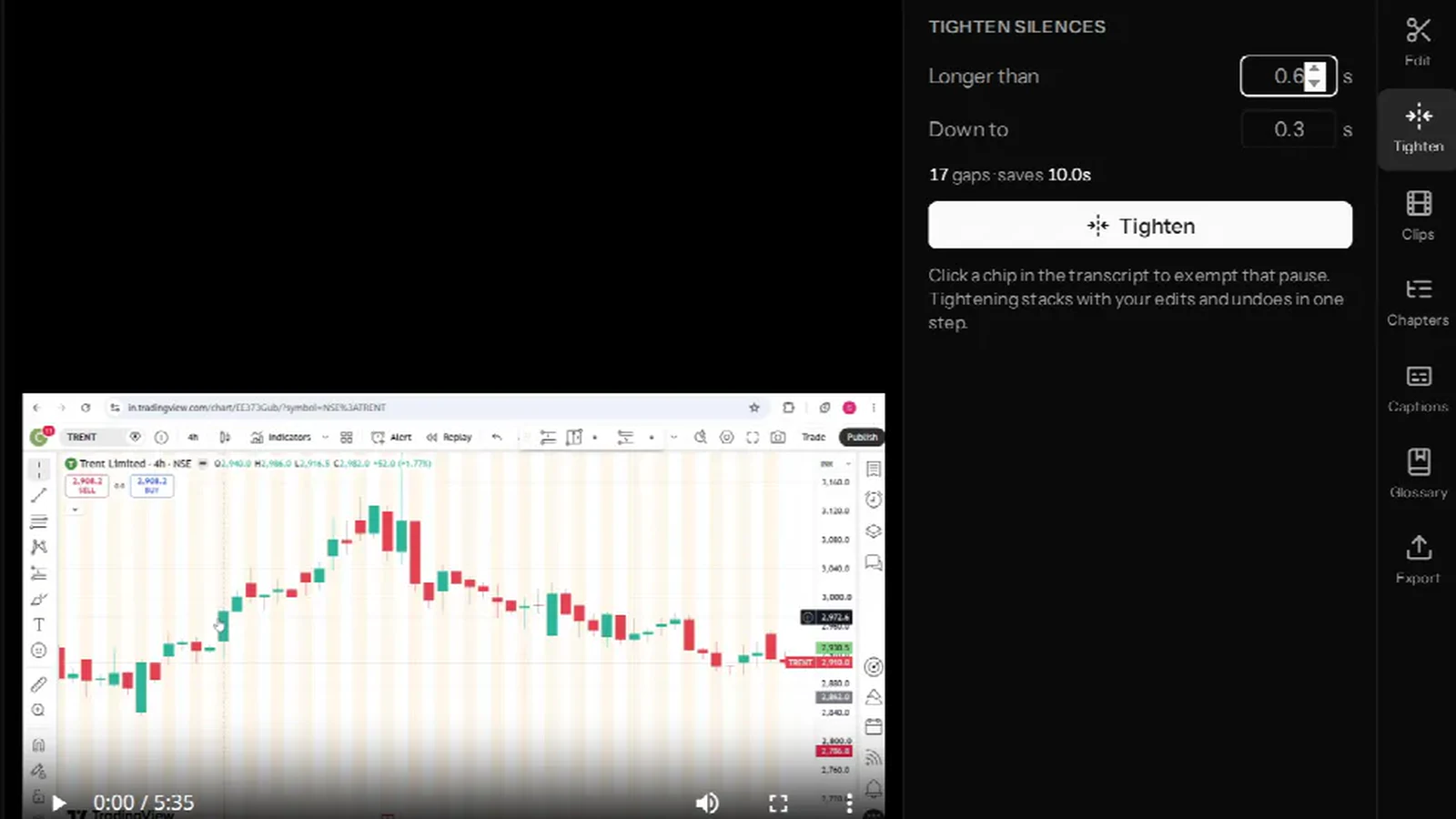
- Screenshots and screen recordings. For anything about software, a website, a document or a spreadsheet, the screen is the B-roll. Take the screenshot at the size you will show it and crop out the browser chrome.
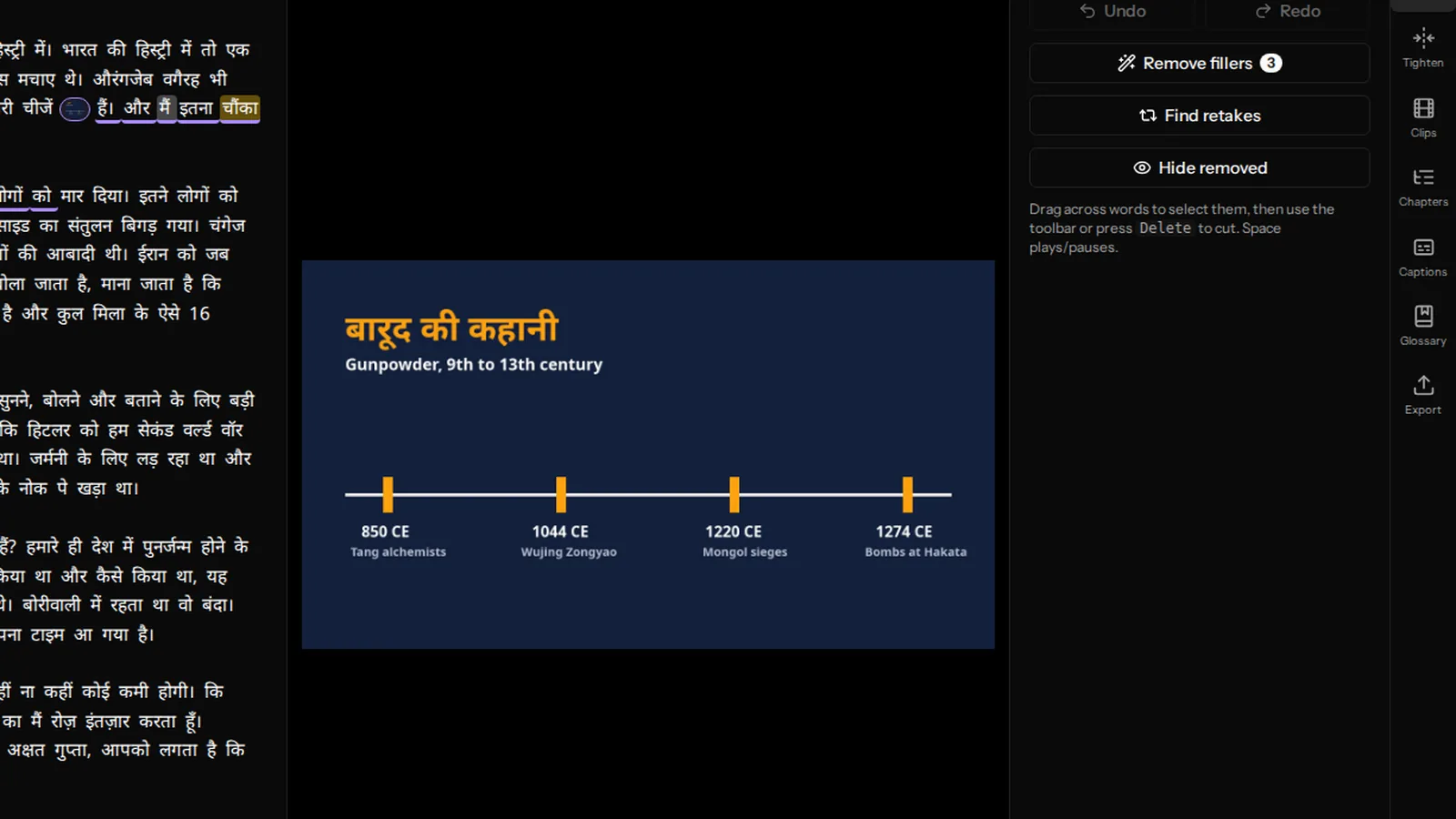
- Slides and diagrams. If you had a deck, export the slides as images. If you did not, a single slide with the three numbers you are about to say, set in a big typeface on a plain background, takes two minutes to make and is the most effective B-roll there is.
- Your own photos and clips. The product on the desk. The street outside. Ten seconds of the thing being done. A phone is enough; hold it still and shoot for longer than you need.
- Stock footage. Free libraries exist and are fine for the abstract — a city at night, a crowd, hands typing. Use it sparingly: viewers recognise stock instantly, and a video that leans on it starts to look like an advertisement for nothing in particular.
How long should a cutaway be?
Long enough to be read, and not a frame longer. Some rules of thumb:
- A photo or a simple shot: three to five seconds. The eye takes it in almost instantly; after five seconds a still image starts to feel frozen.
- A slide or a screenshot with text: as long as it takes to say what is on it, which is usually the length of the sentence that describes it. If the viewer needs to read it, give them the time — or make the text bigger and shorter.
- A clip with motion: five to eight seconds. Motion holds attention longer than a still, but a clip that runs past its point becomes a second video competing with the first.
The mistake in both directions is the same: the picture and the words disagree about how long the moment is. A shot that ends before the sentence does feels cut short; a shot that lingers after the sentence has moved on feels stuck.
Where should it land?
On the words that describe it. Not on the sentence before, as a tease; not on the sentence after, as a reminder. When you say "here is the chart", the chart is on screen. This sounds obvious and is the thing most amateur edits get wrong, usually because the B-roll was placed on a timeline by eye rather than against the words.
Which is why a transcript editor is the natural place to do it. In VidCarve you select the words the picture belongs to and attach it; the picture plays exactly while those words are spoken, and if you later cut a filler inside that span, the picture simply gets shorter. There is no re-timing after an edit, because the timing was never a number — it was the words. The mechanics are in adding B-roll, images and clips in VidCarve.
Full-frame or picture-in-picture?
Two ways to put a picture over a person, and they say different things.
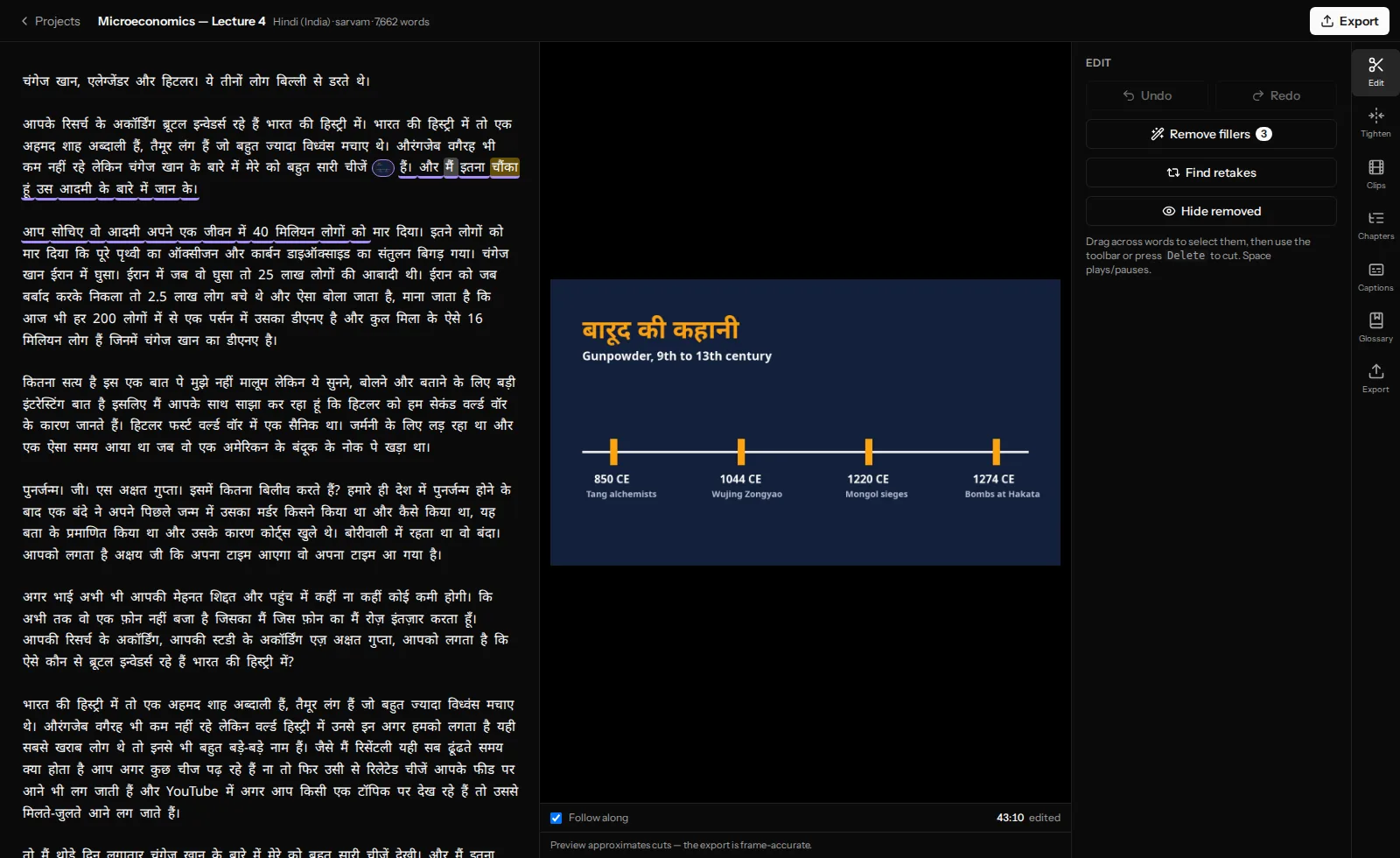
Full-frame replaces you with the picture. Use it when the picture is the point — a chart to be read, a screenshot to be followed, a photo to be looked at. Your voice carries on; the viewer's whole attention goes to the image. This is the classic cutaway and the one that hides a jump cut.
Picture-in-picture keeps you on screen with the picture in a corner. Use it when the person matters more than the picture — a lecture where the slide is a reference, a reaction, a demonstration where the viewer needs to watch your face and the thing at once. It does not hide a cut, because you are still visible across it.
A useful default: full-frame for anything with text or data, picture-in-picture for photos and clips that are illustration rather than information.
How much is too much?
The easy mistake is not too little B-roll. It is a video where the cutaways come every four seconds, none of them shows anything the words needed, and the viewer never gets to look at the person talking long enough to decide whether to trust them. The face is the reason talking-head video works; B-roll is punctuation, not prose.
A workable test: for each cutaway, ask which of the three jobs it is doing. If it is showing something, keep it. If it is covering a cut, keep it if the cut needed covering. If it is only resting the eye, keep one in three.
Frequently asked questions
What is the difference between B-roll and a cutaway?
A cutaway is one shot of B-roll — the act of cutting away from the main shot to something else and back. B-roll is the footage; a cutaway is the edit.
Does B-roll need its own sound?
Usually not; your voice continues underneath. A clip's own sound — the street, the machine, the crowd — can be mixed quietly under your voice for texture, and a good editor ducks it automatically when you speak. If the clip's sound is the point, turn your own voice down for those seconds rather than up.
Can B-roll fix a bad take?
It can hide the cut between two good takes, which is most of what "fixing" means. It cannot rescue a passage that was not clear to begin with — if the words are muddled, cover them and the muddle is now off-camera.
Do I need B-roll in a short vertical clip?
Rarely. A 30-second Reel is short enough that a face holds it, and captions do the work of giving the eye something to read. One cutaway at the point where you show the thing is plenty.
Where do I get free B-roll?
From your own screen, slides and phone first — it is specific to your video, which stock never is. For the abstract shot, the free stock libraries are adequate; check the licence allows commercial use if the video makes money.
Next steps
- Add B-roll, images and clips in VidCarve — the buttons.
- Jump cuts, and how to make them look intentional — what B-roll is usually covering.
- How to make a talking-head video people finish — where B-roll fits in the whole.