How to Export, Download and Keep Your Videos in VidCarve
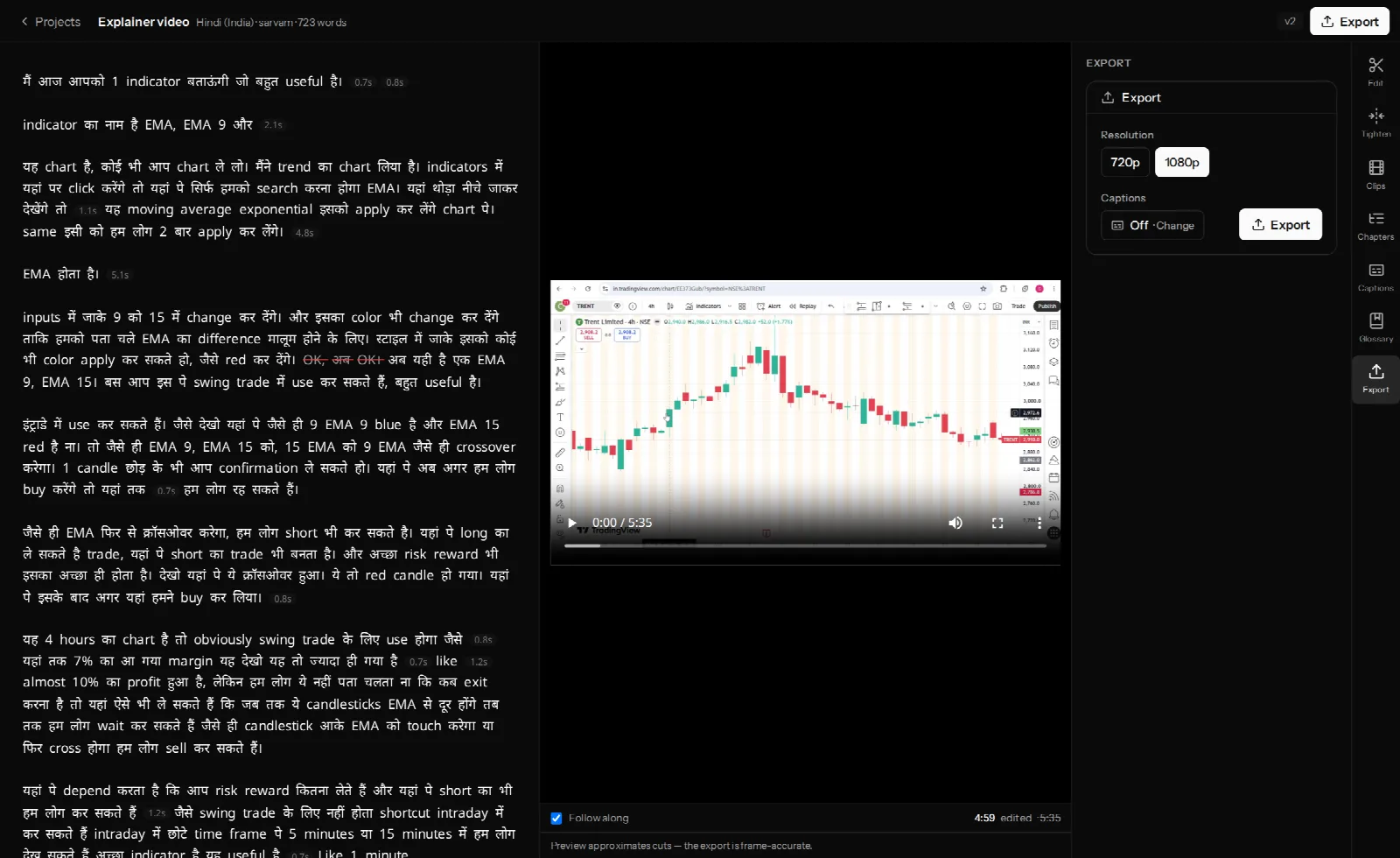
To export a video from VidCarve, open the Export tab, choose 720p or 1080p, decide whether captions are on, and press Export. The finished file appears in the same panel with a Download button, and in the cross-project Exports page for as long as your account exists. Nothing is re-encoded until this moment: exporting is when your list of cuts finally becomes a file.
This guide is about the decisions on that panel and what happens to the file afterwards — what the resolution choice actually does, how long a download link lasts, what an export costs, and what retention removes and keeps.
The short version
- Open the Export tab in the editor's right-hand rail (or the Export button top-right, which opens the same panel).
- Pick a resolution — 720p or 1080p. Choose the one that matches your recording; a higher number does not add detail.
- Captions on or off. The button shows the current preset name or Off; Change takes you to the Captions tab.
- Press Export. Progress shows in the panel; you can keep editing or close the tab.
- Download from the row when it finishes, or later from the Exports page.
Which resolution should I choose?
The one your recording was made at. VidCarve never upscales: if you recorded at 720p and export at 1080p, the file you get back is still 720p tall, because there is no extra detail to invent and a bigger file made of the same pixels would only be slower to upload to YouTube. The 1080p option is for footage that was 1080p (or larger) to begin with.
If you are not sure what you recorded at, check the file's properties on your computer or phone before uploading; recordings from phones made in the last few years are almost always 1080p or 4K. 4K sources export at 1080p — the ceiling in VidCarve today — which is what nearly every talking-head video is watched at anyway.
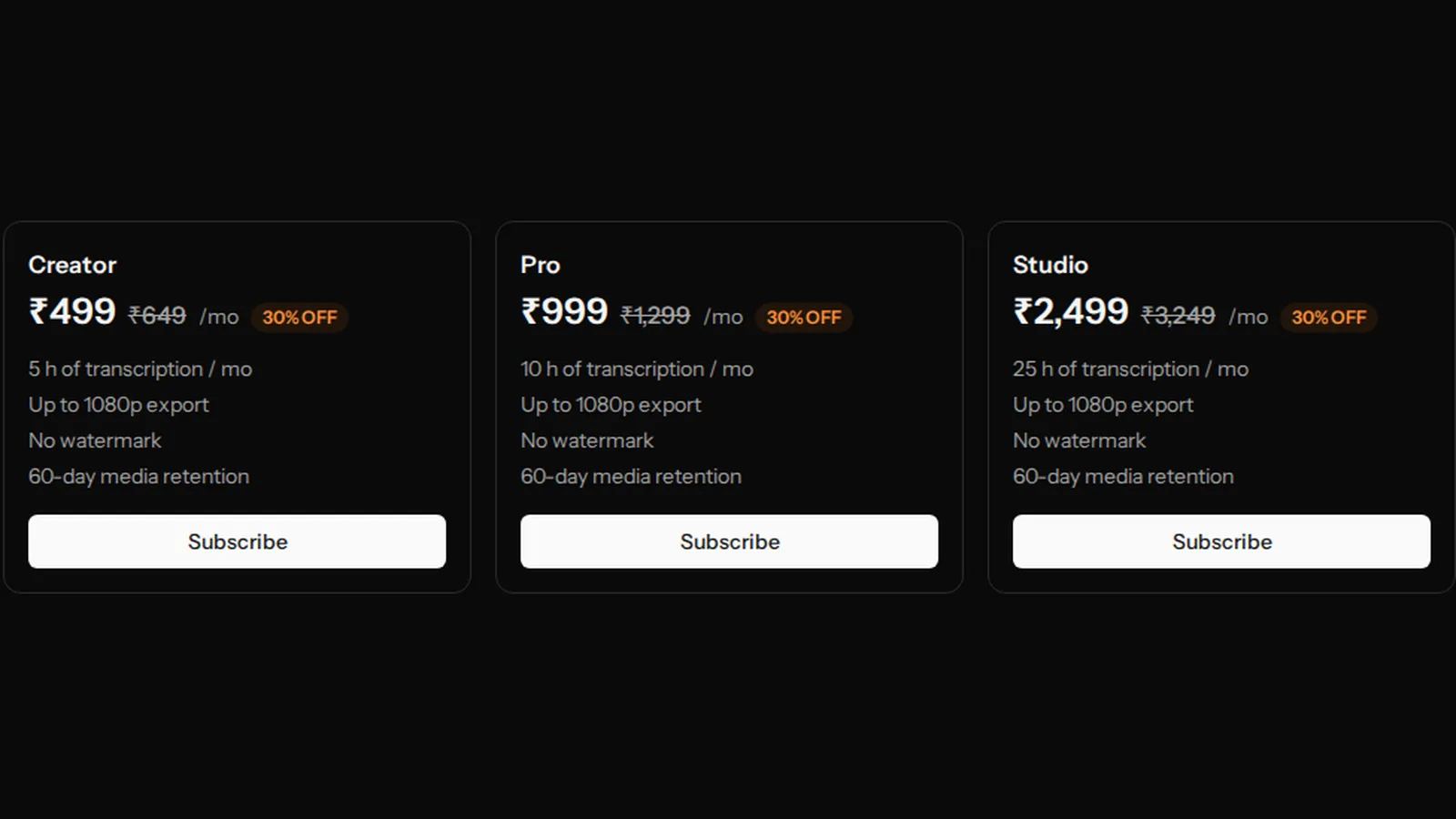
On the free plan 1080p is greyed out with an Available on a paid plan hint, and exports carry a small watermark. Upgrading and re-exporting the same project gives you a clean 1080p file; nothing about the project needs redoing.
What is included in the export?
Everything the project currently says, assembled frame-accurately from your original upload (not the preview copy you edit against):
- Your cuts — every struck word, tightened pause and removed retake, as of the moment you press Export. The history row records which edit version it used (v7, say), so you can tell two exports apart later.
- Captions, burned in, in the style set on the Captions tab — if the toggle is on.
- Studio sound, if it is on for the project.
- B-roll placements, composited over the picture with their audio mixed under yours.
- The watermark, on the free plan only.
What is not included: chapters (they are a text block you paste into a description, not part of the file) and the transcript itself, which VidCarve does not export as a separate document today.
What does exporting cost?
No transcription minutes. Your plan meters the audio you transcribe, once per upload; rendering is not metered, so you can export the same project at 720p, then at 1080p, then again after a fix, without touching your allowance. The details are in how minutes and plans work.
How long does an export take, and can I run two?
Roughly a few minutes for a half-hour video, longer at 1080p and with captions. The row shows a percentage as it goes, and you can close the browser — the export runs on a server, and the row will be finished when you come back.
One export per project at a time. While one is running the button reads Export in progress…; another project's export is independent of it. Vertical clip exports from the Clips tab are tracked per clip rather than per project, and are covered in vertical clips.
Downloading: how long is the link good for?
Each Download click creates a fresh link that is valid for 24 hours. The link is what expires, not the file — come back a month later, click again, and you get a new 24-hour link. So do not paste a download link into a document expecting it to work next week; share the file, or come back to the row.
The downloaded file is named after the project, resolution and date (my-lecture-1080p-2026-09-21.mp4), which is more useful than a random id when you have eight of them in a folder.
Where do old exports go?
Two places. The Export tab of each project lists that project's attempts, newest first — including failed ones, with a plain-English reason and a Try again that starts a fresh export with the same settings against the same edit version.
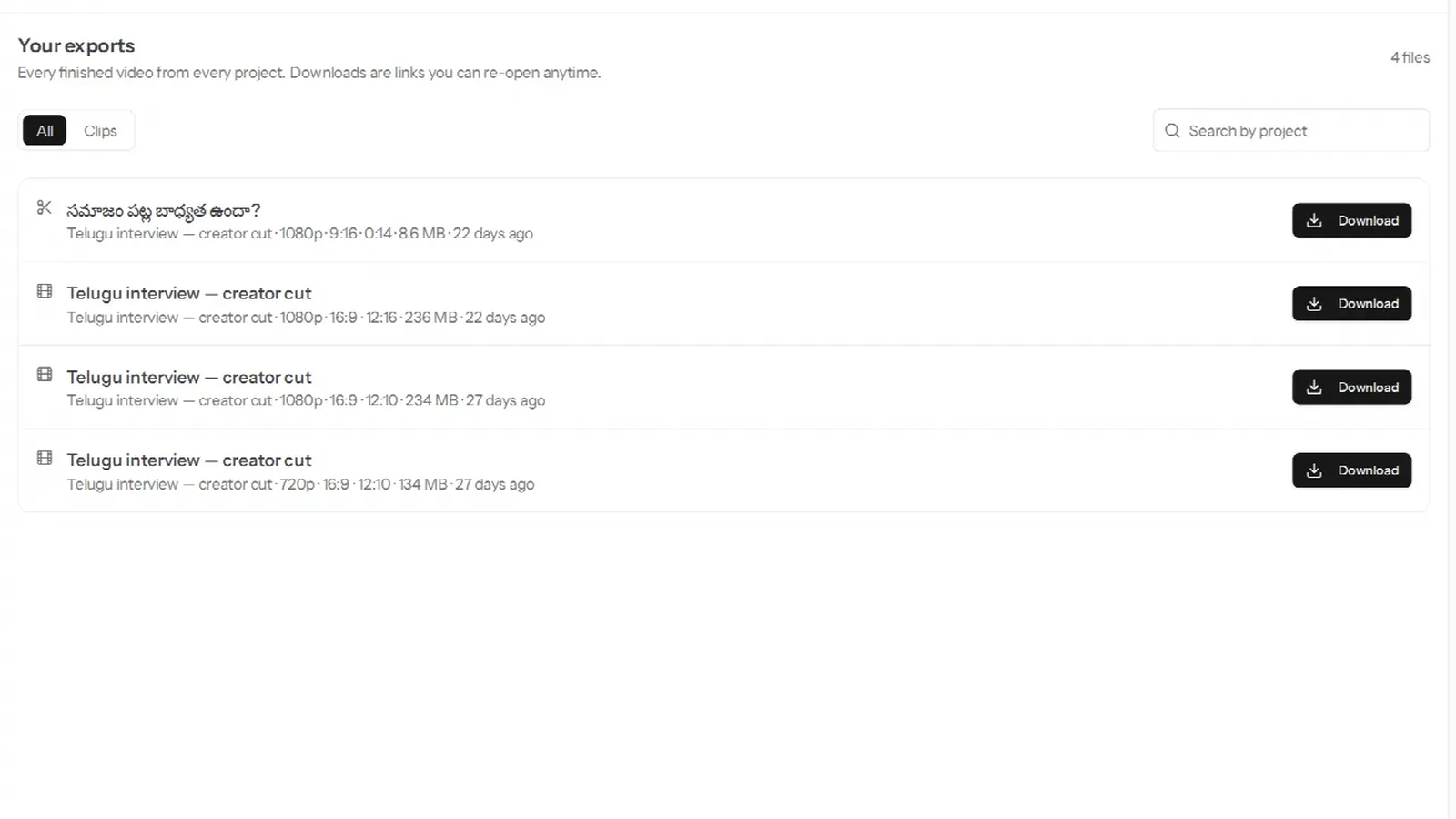
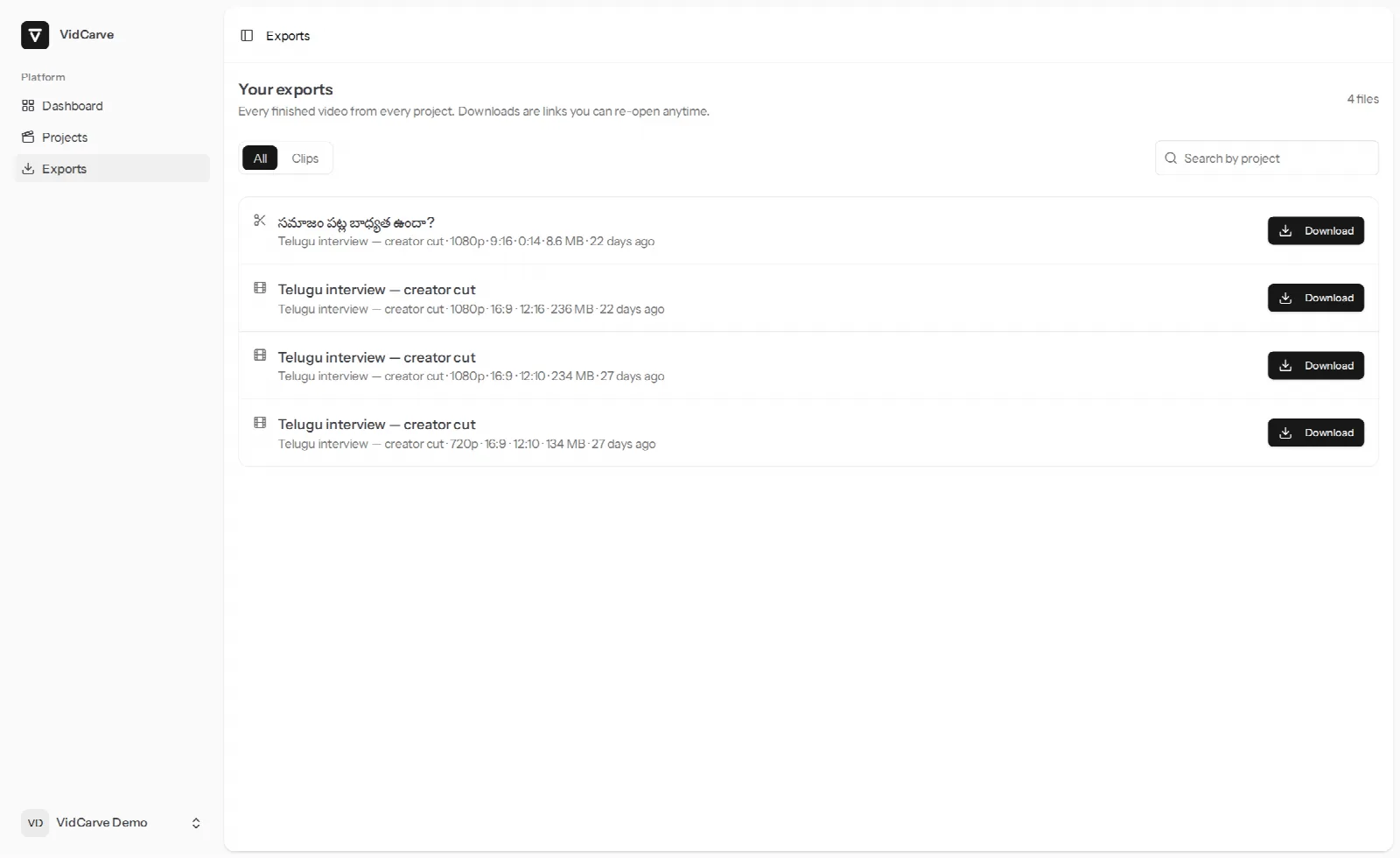
The Exports page (Exports in the sidebar) lists every finished file from every project in one place, with a filter for clips and a search by project name. Each row shows resolution, aspect, length and size, and the same Download.
Does retention delete my exports?
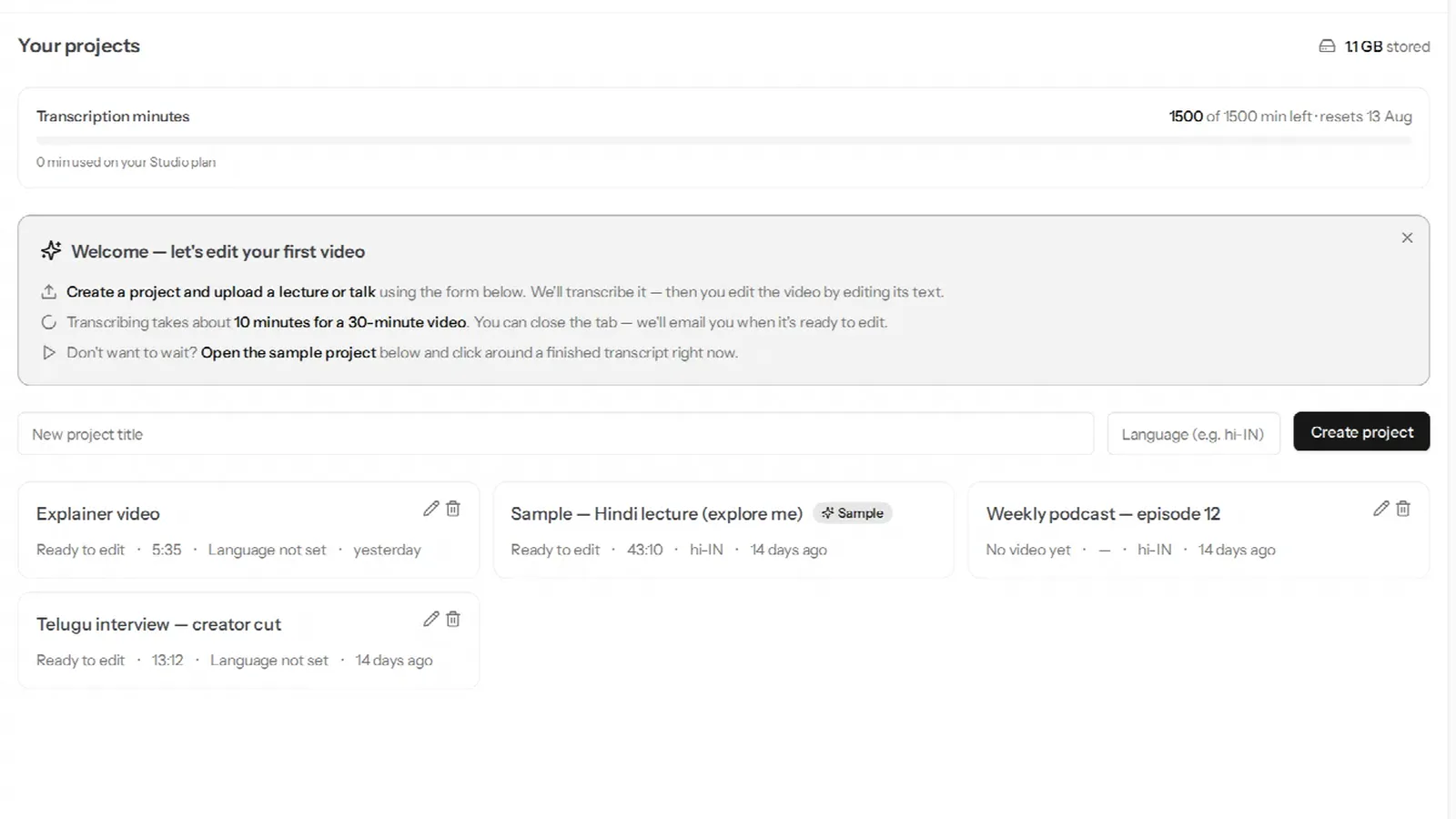
No. Retention removes the source video and the working files derived from it after 7 days on the free plan or 60 days on a paid plan, counted from the upload. Exports are the thing you came for, so they are kept, and so are the transcript, your edit history, clips and chapters. After the window a project reads Media expired: you can still read the transcript and download every export, but making a new export needs a fresh upload. The full picture is in projects, storage and retention.
Deleting a project is different — that removes its exports too, permanently, and says so before it does.
Frequently asked questions
My export failed. Did it use anything up?
No. Nothing is metered for exports in the first place, and a failed attempt leaves no file. The row shows why in plain language — a server that could not be reached, a rendering error, an upload that did not complete — and Try again starts a new attempt. If it fails twice in a row, the error text is what to send to support.
Can I export just part of the video?
Not as a range on the Export tab. The nearest thing is the Clips tab, where a clip is a start and end point over the same edit — but clips export as 9:16 vertical files, so for a 16:9 excerpt the honest route is to strike the words outside the part you want and export the project.
Why is my 1080p export the same size as my 720p one?
Because your recording is 720p and VidCarve does not upscale. Both exports are 720p tall; the second one simply took longer to make.
Can I change the caption style after exporting?
Yes — captions are burned in at export time from the current style, so change the style on the Captions tab and export again. The earlier file is unchanged.
What format is the file?
MP4 with H.264 video and AAC audio, which every platform and phone plays. There is no other container or codec option.
Next steps
- Burned-in captions for Hindi and Indian languages — the other half of the export panel.
- Projects, storage, retention and deleting — what happens to the files afterwards.
- The complete beginner's guide — if you have not exported anything yet.